Cuevivo

Show-control cue software · v1.0.36

Your whole show,
one GO at a time.

Cuevivo is a free, open-source cue system for theatre, concerts, dance, conferences and installations. Sound, video, PDF slides, subtitles in several languages, lights over OSC, MIDI, projectors and digital mixers — all lined up in a single cue list and fired with the space bar. In the spirit of QLab and Show Cue Systems, built for Linux, and also available for Windows and macOS.

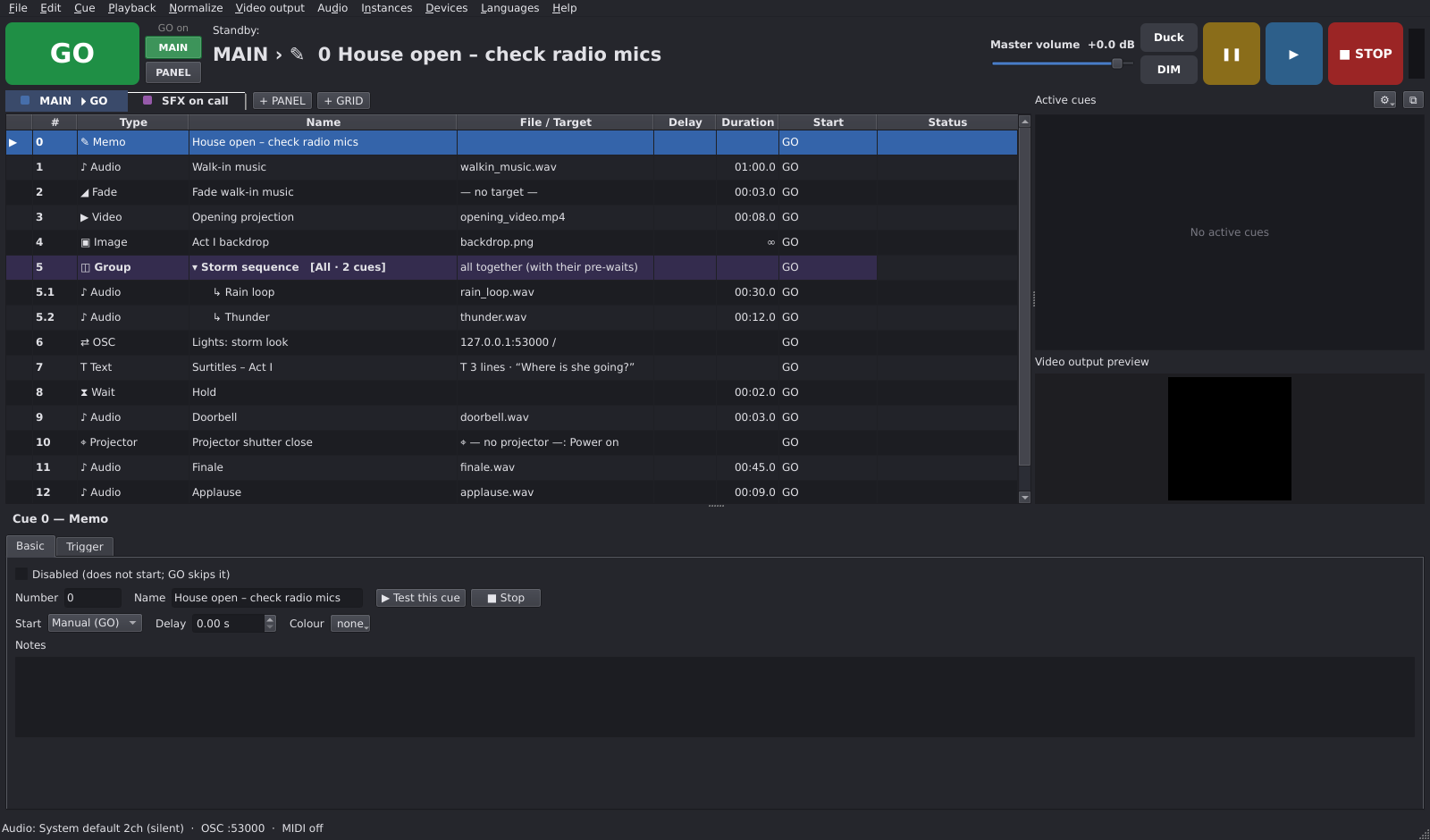
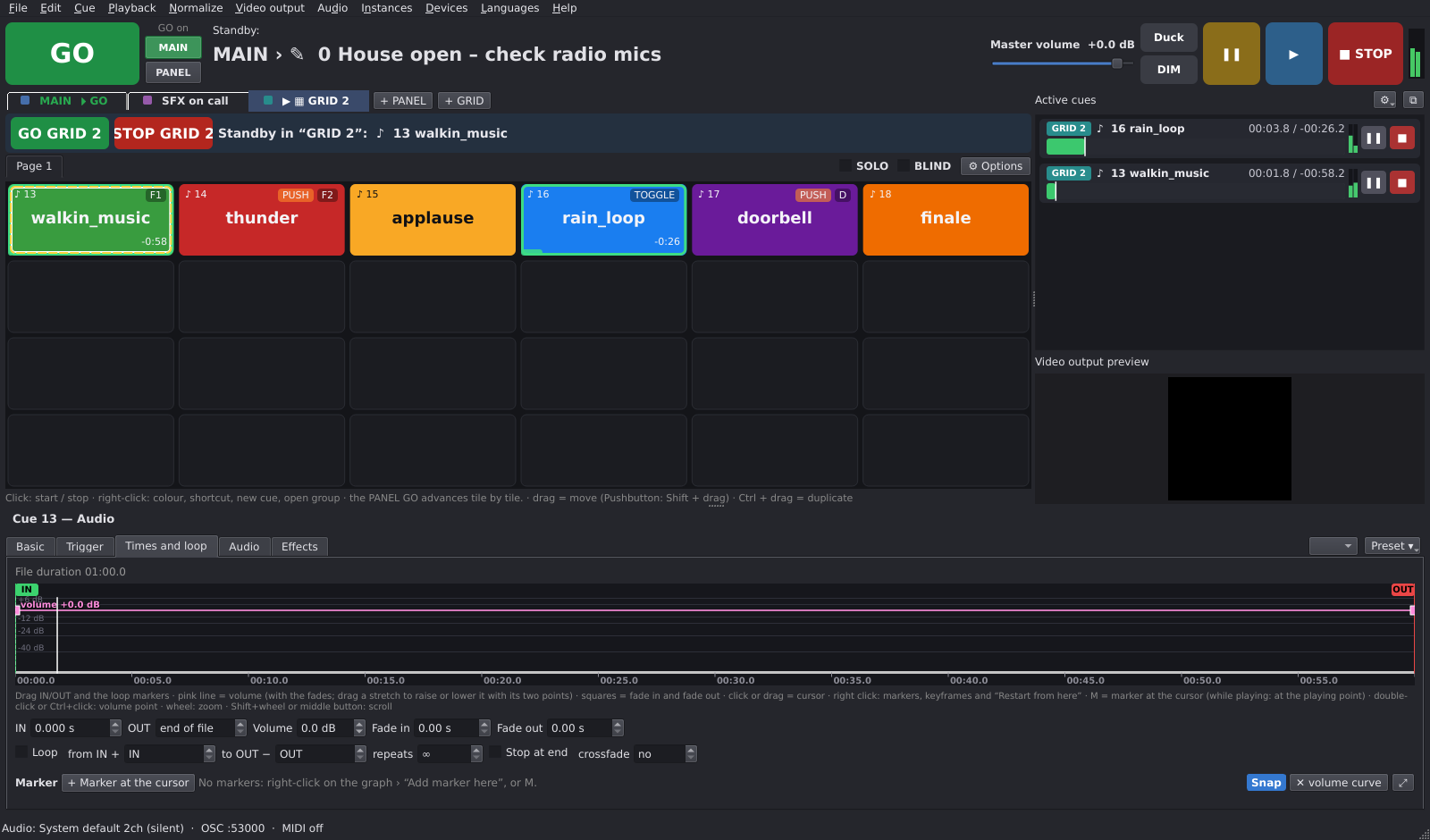
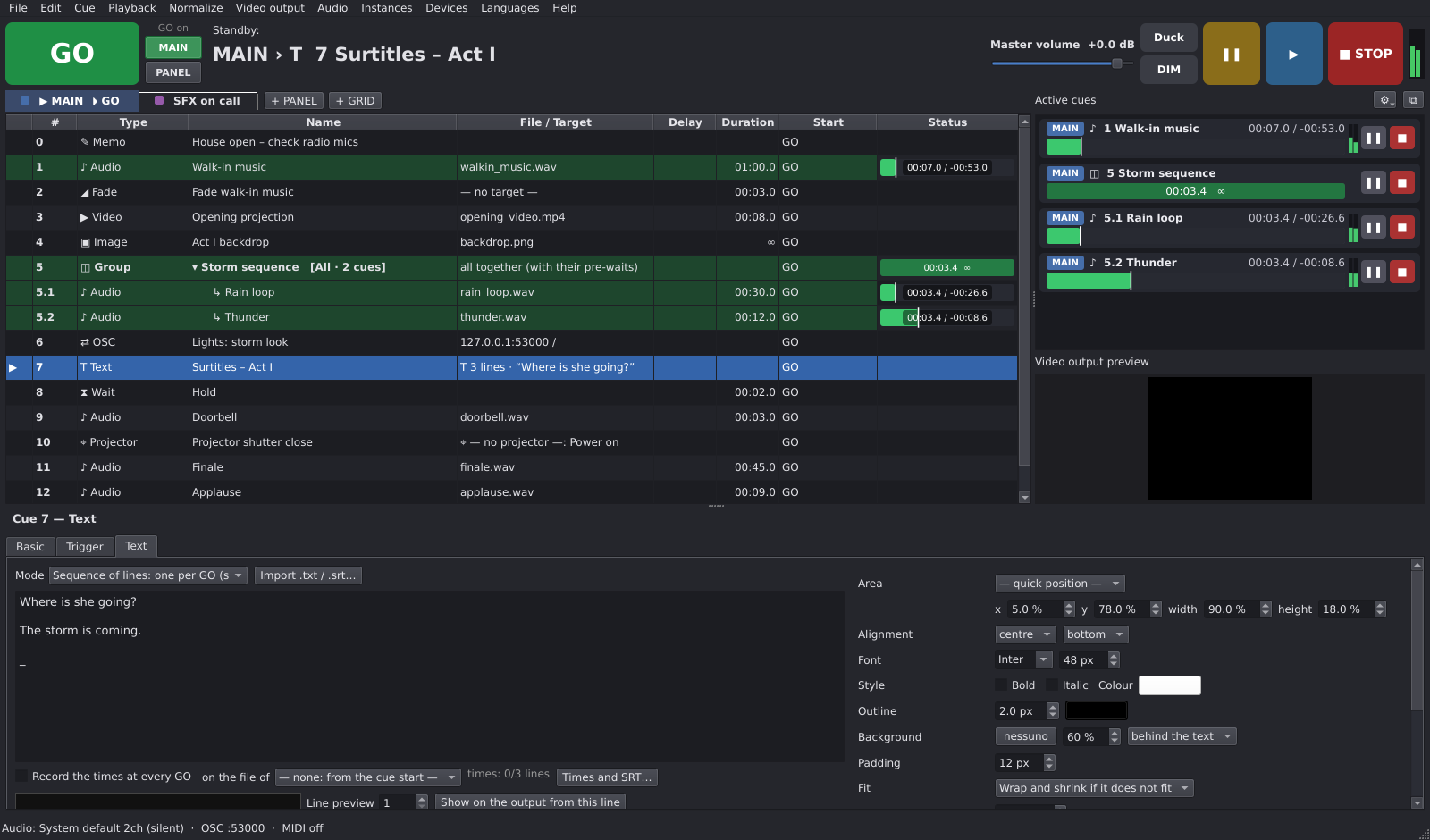
Cuevivo running a show with several active cues Cuevivo ComparisonCuevivo compared with QLab and Show Cue System, feature by feature (PDF). 227 KB ⬇

What is Cuevivo?

In live performance every sound effect, music change, projection or lighting state has to happen at exactly the right moment. Cuevivo lets you prepare all of these as cues in advance, in rehearsal, and then play them back during the show by pressing GO: the next cue is always in standby, ready to go.

A cue can play a file, fade another cue, send a command to a lighting desk or a mixer, close a projector's shutter or show the next line of surtitles. Cues can start on their own, together with the previous one or after it, and can be grouped into sequences, random playlists or endless loops.

Who is it for?

  • Sound and stage technicians in theatres, schools and amateur companies
  • Musicians and bands who need backing tracks, samples and video in sync
  • Event and conference crews running walk-in music, videos and stingers
  • Museums and installations that need loops and timed sequences
  • Anyone who wants a QLab-style workflow on Linux, or on any computer they already own

Current version 1.0.36

What’s new

The latest releases, newest first.

1.0.34 – 1.0.36 Layout and bug fixes: window and inspector widths, Windows and macOS.
1.0.33 27 Nov 2026
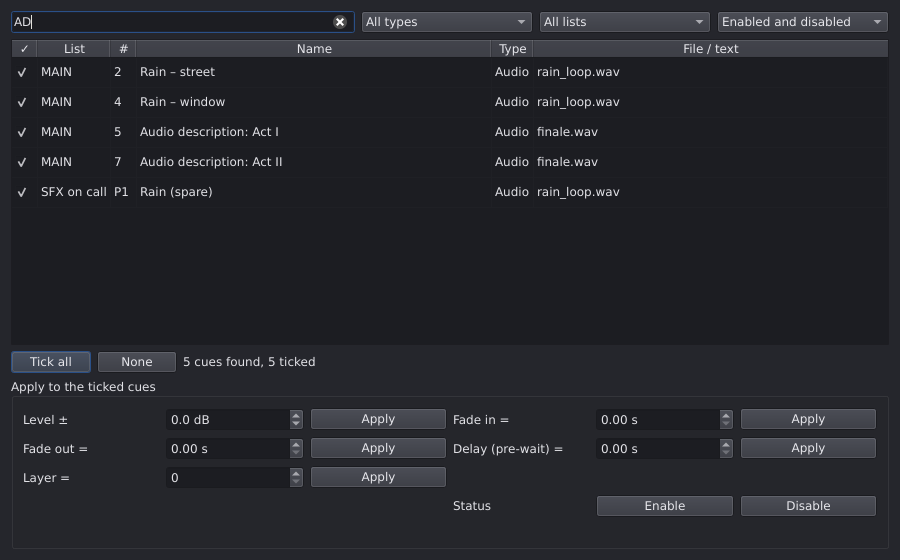
Find and edit: the cues tagged AD found in every list, ready to be changed together or disabled

Find and edit

Search the whole show — every list, PANEL and GRID — by text, type, list or state, then change the found cues together: level, fades, pre-wait, layer, enable or disable. Tag cues in their notes (“AD”, “MAT”…) and switch a whole variant of the show on or off in one go.

In the picture: every cue tagged “AD” (audio description) found across the show, ready to be enabled for the audio-described performance.

New version notice

At start-up Cuevivo checks in the background whether a newer version is available and, if so, shows a red “See the new version” next to the Help menu. It never slows the start and stays silent without network.

Pause at a marker

New marker actions: Pause Cue stops the cue at the marker, Pause Cue and go to marker jumps to another point of the same cue and waits there. It resumes with ▶ or with the main GO — perfect for music that waits for an actor.

Scrub and arrange the active cues

Drag the cursor of a playing cue in the Active cues panel to move through it. The panel has row sizes up to very large, filters, and can be detached to a second monitor. OSC programs such as Script Follower can show and stop the active cues too.

Earlier copies and cue sheet

Every save keeps a dated copy of the previous version of the show (the last 30), restorable from the File menu. File › Export cue sheet writes all the lists as a printable PDF or a CSV for stage management.

New menus and OSC profiles

The Settings menu becomes Audio, Instances, Devices and Languages. OSC devices and profiles get an editor with JSON import and export, plus a ready-made QLC+ profile.

Snap guides

Snap guides help to crop and place pictures on the output.

1.0.32 22 Nov 2026
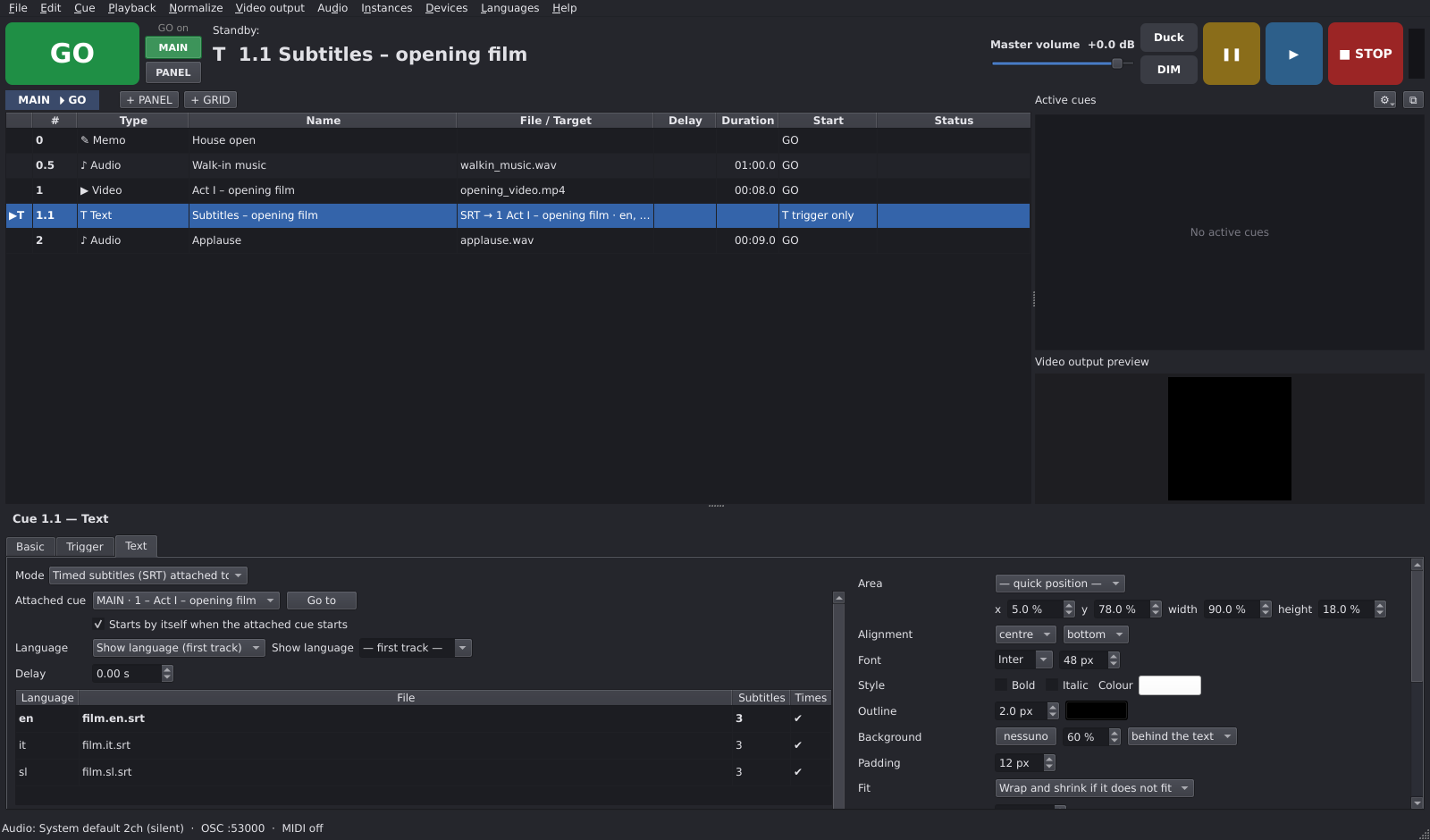
A timed subtitle cue attached to a film, with English, Italian and Slovenian tracks

Timed subtitles (SRT)

Attach .srt or WebVTT files to an audio or video cue: the subtitles follow the position of the file, so IN point, loops, pause, “Restart from here” and jumps are all respected, and they start by themselves with the film. Drop the .srt files on the list, shift them all with a delay, export them back to .srt.

In the picture: an SRT cue attached to the opening film, with three language tracks; it starts by itself with the film.

Every screen in its own language

One track per language, picked from the file name (film.it.srt, film.en.srt…). Switch the show language live or over OSC — and each slave computer can show the subtitles in its own language. With “Do not send to the master screen” a slave drives its own surtitle projector, following the master’s GO or the position of the master’s film, without playing the media itself.

Timing check

Every track is checked: missing or reversed times, overlaps, subtitles too short, wrong encoding, and against the film — subtitles after its end or outside IN/OUT, and times stretched by a frame-rate mismatch such as 23.976 ↔ 25 fps.

Subtitles found inside videos

When you add a video, Cuevivo finds its subtitle tracks and offers to import them into a subtitle cue, to export them as .srt files next to the video, or both.

Record the times at every GO

Surtitles run line by line with GO can now record when each line appears and disappears, on the film they accompany. Correct the times in a table, export them as .srt, turn the cue into timed subtitles, or place a marker at the start of every line.

1.0.31 21 Nov 2026
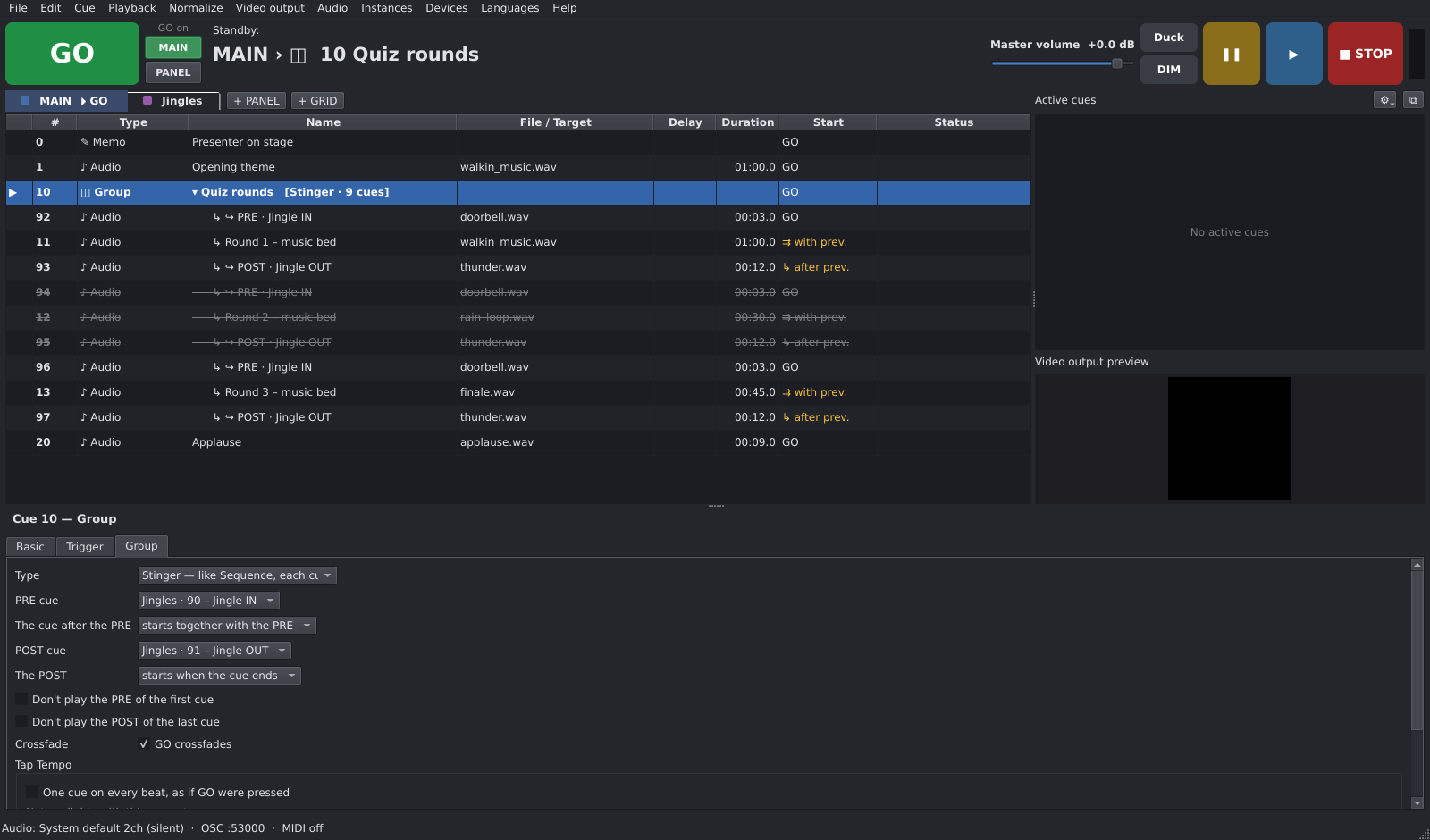
A Stinger group: every quiz round wrapped by a Jingle IN and a Jingle OUT, with round 2 disabled

Stinger groups

A new kind of group for shows built in blocks — quizzes, award ceremonies, talk shows: every cue is automatically wrapped by a PRE and a POST, for example a jingle in and a jingle out. They start together with the cue, when it ends or with a GO, the first PRE and the last POST can be skipped, and with “GO crossfades” each new block fades out the previous one.

In the picture: three quiz rounds, each wrapped by its jingles from the Jingles PANEL; round 2 is disabled and skipped.

Link cues

A Link repeats another cue somewhere else in the show — the same file, times, volumes, effects and presets — so the same jingle or sound can appear many times and be changed in one place. Create one with Ctrl+L.

Crossfade on GO in sequences

With “GO crossfades”, in a Sequence group each GO fades out the cue still playing over the fade-in time of the new one: a 2-second fade-in gives a 2-second crossfade, no fade-in gives a clean cut.

Enable and disable

Cues, groups and whole PANELs can be disabled without deleting them: they stay in the show, grey and struck through, and nothing starts them — GO simply skips them. Perfect for scenes cut from tonight’s performance. Ctrl+Shift+D.

1.0.30 20 Nov 2026

CueStage is now Cuevivo

Same program, new name. Updating keeps everything: shows keep their .cueshow files and open in both, and settings, autosaves, plugins and OSC/MIDI profiles are taken over automatically at the first start. On Linux the old cuestage command still works, on Windows the installer updates the previous installation, and on macOS network and microphone permissions are kept (you can delete the old app afterwards). Different versions still recognise each other on the network, and OSC programs can keep their old addresses.

1.0.25 19 Nov 2026
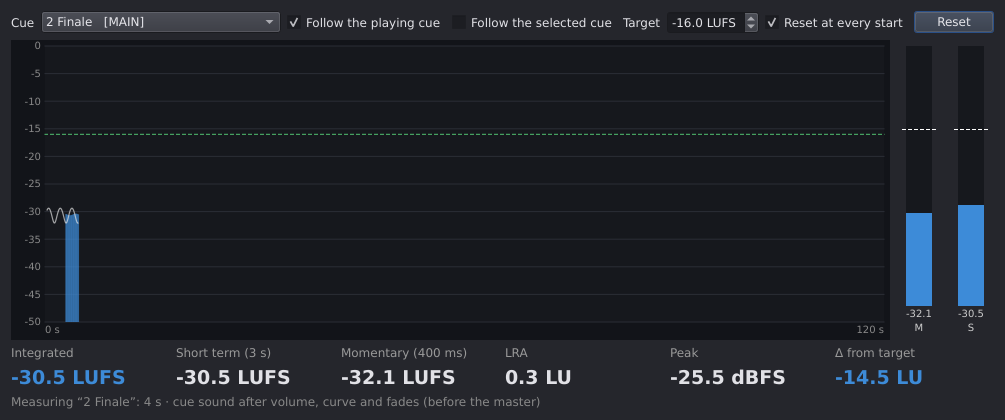
Real-time LUFS meter: integrated, short-term and momentary loudness of the playing cue

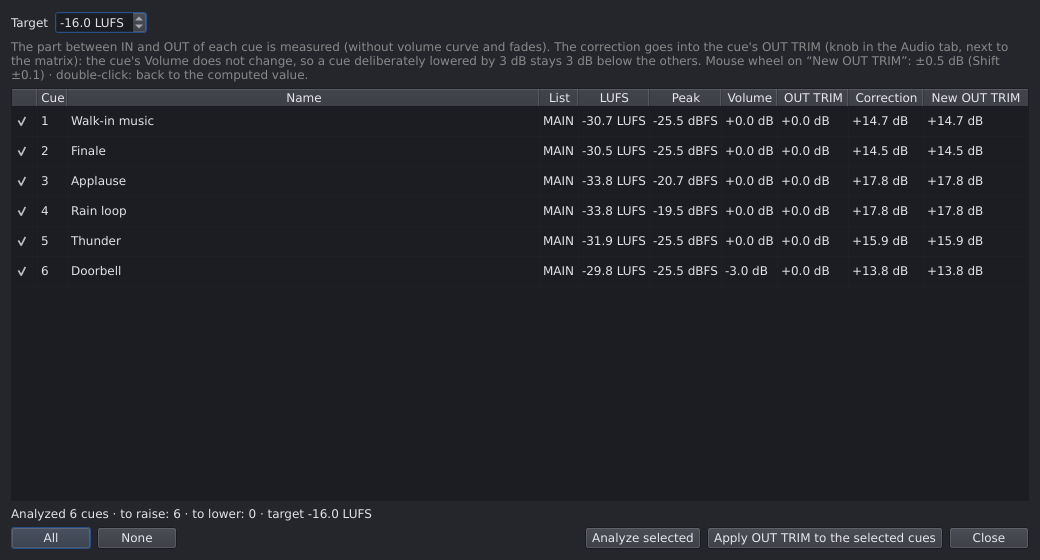
Loudness normalization (LUFS)

Normalize › Normalize cue volume analyses the integrated loudness and peak of every cue with audio and brings them all to the same perceived level (e.g. −14, −16 or −23 LUFS). The correction goes into a new OUT TRIM, so each cue’s own volume, presets and keyframes stay exactly as you set them — a cue you lowered on purpose stays lower.

Measured as in ITU-R BS.1770-4 / EBU R128, the same result as ffmpeg’s ebur128.

Real-time LUFS meter

A loudness meter for the cue that is playing: momentary, short-term and integrated loudness, loudness range, peak and distance from the target, with a history graph and M/S bars. It can follow the playing or the selected cue on its own.

PDF cue

Show the pages of a PDF on the video output like a sequence: every GO turns to the next page with a crossfade. Pick the pages to show (“1-3, 5, 8-”), crop, position and fade them like an image — slides and documents without leaving Cuevivo.

Restart from here

Right-click anywhere on a cue’s waveform while it plays, is paused or stopped: it restarts from that point and the other cues keep going. The inspector stays on the cue you chose while GO moves on, markers can be added live, and jumps no longer fire the markers they skip.

Find missing files

When a show is opened on another computer or the media drive has moved, Cuevivo searches a folder for the missing files and relinks them all at once, applying the same folder move to the others.

The right projector, every time

The output screen is recognised by its identity — manufacturer, model, serial number and port — not by its position in the list. Screens plugged in or unplugged during the show are handled at once.

Real-time audio

The audio thread now runs at a higher priority and Python’s memory clean-up is kept away from the show, for fewer dropouts on busy computers. Diagnostics shows both. Shows saved by a newer Cuevivo open with a warning and keep their unknown data.

1.0.20 – 1.0.24 The main window fits small screens such as 1366×768 laptops: compact buttons, compact preset bar, adjustable inspector.
1.0.19 macOS: fixed the libraries for Apple Silicon; Cuevivo runs from Monterey 12.3 on Apple Silicon and from Monterey 12.0 on Intel Macs. No new features.
1.0.18 17 Nov 2026
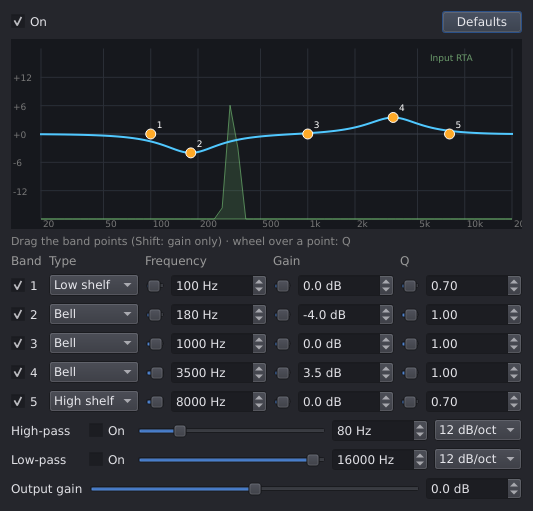
Parametric EQ window with draggable bands and the input spectrum (RTA)

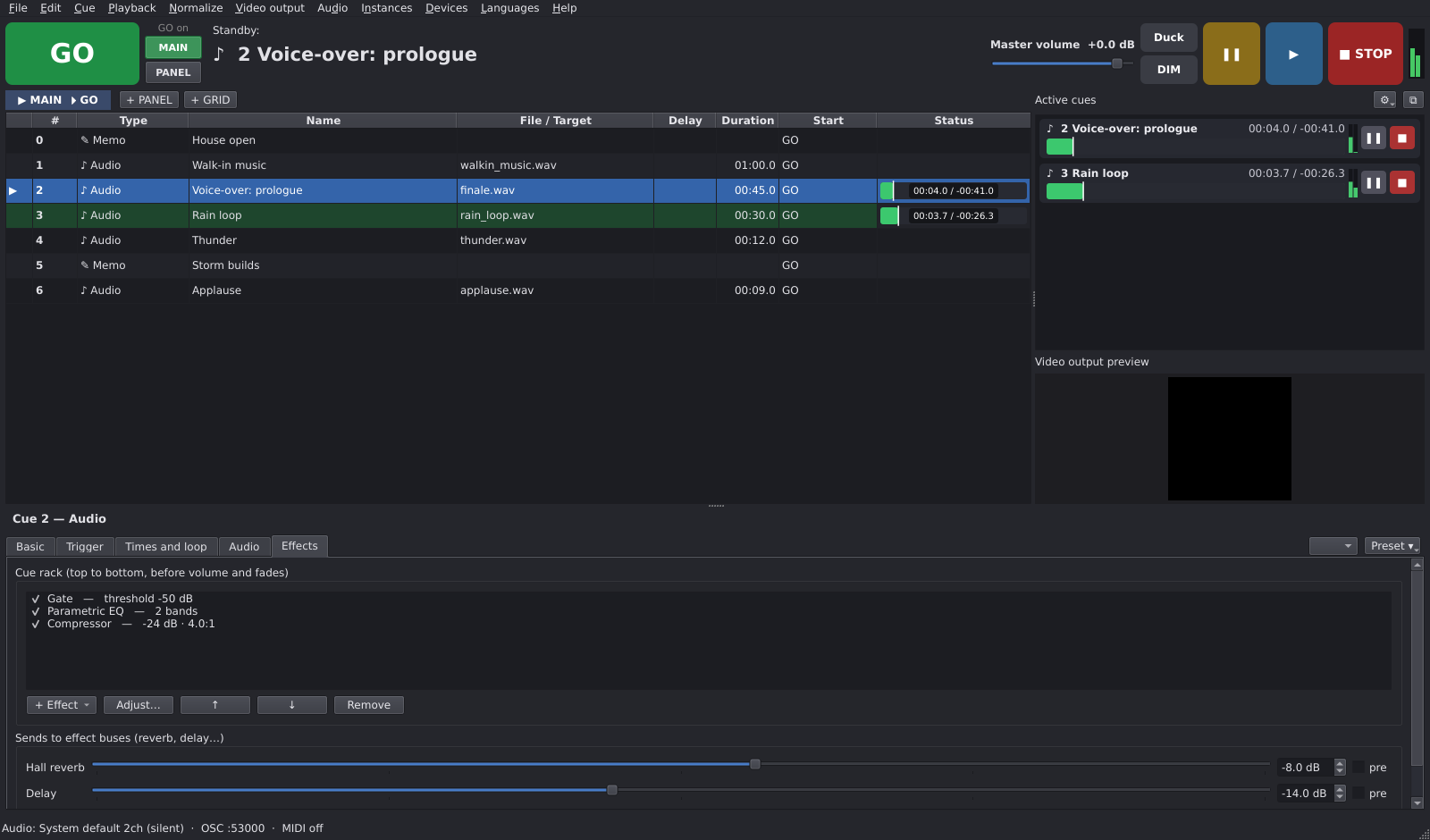
Audio effects on every cue

Each audio or video cue has its own effects rack: gate, 5-band parametric EQ with high- and low-pass filters, and compressor, in the order you choose. Every effect opens in a floating window — drag the EQ bands on the curve, watch the spectrum of the input, the compressor’s transfer curve and gain reduction — and changes apply at once, even while the cue plays.

Built into Cuevivo (no plugins to install), identical on Linux, Windows and macOS.

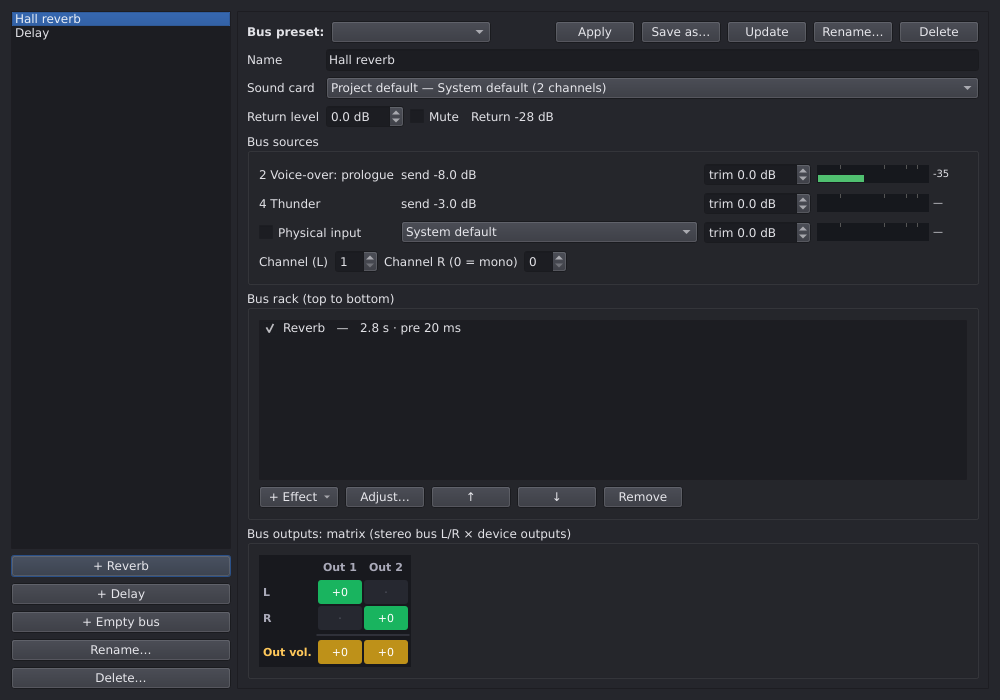
Effect buses: reverb and delay

Create buses with their own rack — reverb, delay, EQ, compressor, gate — and an output matrix. Cues send to them with a fader each (pre or post fader), so one reverb serves the whole show and its tail keeps ringing naturally after the cue ends. A bus can also take a live microphone or line input.

Delay with pitch

Every repeat of the delay can be shifted up or down in pitch, for echoes that keep rising or falling — and a Bus control cue can fade the pitch during the show.

Bus control cue and bus presets

A new Bus control cue changes a bus live — return level, mute, live input, any effect parameter — with a timed fade. Buses have their own presets, Change preset cues work on buses too, and a cue’s audio presets now include its rack and sends.

Diagnostics and performance test

Help › Diagnostics shows CPU load, the audio buffer timing and underruns of every sound card, the video output, the graphics card in use and the engine logs. A built-in 5-second benchmark measures this computer and suggests the right audio buffer.

GPU video engine

Video frames go straight to the graphics card, with crop, rotation, perspective and 4-corner correction computed there, falling back automatically to the classic engine when no GPU is available. Audio can be read from a disk cache, and smaller audio buffers (128 and 256 samples) are available.

1.0.16 – 1.0.17 Stability fixes for Windows. No new features.
1.0.15 13 Nov 2026

Drag and drop between lists

Drag the selected cues onto the tab of another PANEL or GRID: the list opens so you can drop them on a row, a tile or a group. Ctrl + drag copies instead of moving. GRID tiles can be dragged directly, and “Move to” sends tiles or whole groups to another list or group.

Full screen cue

A new Full screen cue opens the video output full screen on the chosen screen, or brings it back to a window or hides it — handy at the start and at the end of a show.

Smarter pushbuttons

“On release start” can wait until the released cue — or every cue of its group — has faded out. Pushbuttons with a MIDI trigger are released by the Note Off of the same note (or a CC at 0), with no extra setup.

1.0.14 13 Nov 2026

Pushbutton and Toggle tiles

Every GRID tile or keyboard shortcut can be a Toggle (press to start, press again to stop) or a Pushbutton: the cue plays while you hold it and fades out when you let go, optionally starting another cue on release — like a sampler pad. Memo cues are no longer triggered by GO.

1.0.13 12 Nov 2026

Blackmagic ATEM Mini

ATEM Mini, Mini Pro / Pro ISO and Mini Extreme / Extreme ISO join the video switchers. Cuevivo speaks the same network protocol as ATEM Software Control (which can stay open), finds them on the network and needs nothing installed.

MIDI Machine Control and MIDI clock

MIDI out cues can send MMC (play, stop, record, locate…), MIDI clock start / continue / stop and Song Position. Ready-made MIDI profiles, starting with Akai MPC: play, record, go to a time, play a pad.

Rotation of video and images

Pictures rotate around their centre, with quick ±90° buttons — also in presets, in keyframes and live during the show.

Better loops

Loops restart exactly at the loop start, with an optional crossfade; “Stop at end” ends the repetitions; a new Exit loop command lets a cue finish its lap and go on to OUT. Video cues get their own picture fades and loop crossfade.

Live editing while playing

Changing the volume curve, the opacity curve or the cue volume during playback takes effect at once, on secondary instances too. A new volume fader with a meter sits next to the routing matrix.

Workflow details

Resizable list columns remembered at restart; drag a segment of the volume or opacity line to move both its points; “Output volumes to 0 dB” also resets the matrix; the ducking input opens in the background; proper menu icon on Ubuntu.

1.0.12 10 Nov 2026
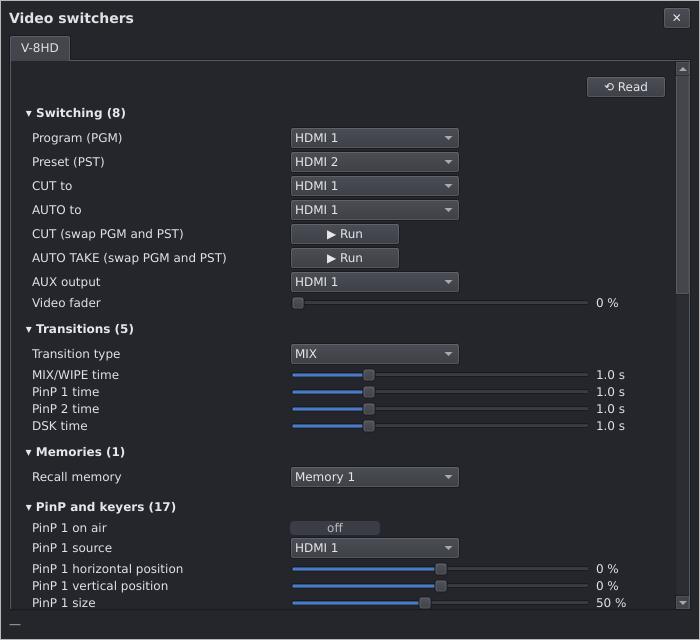
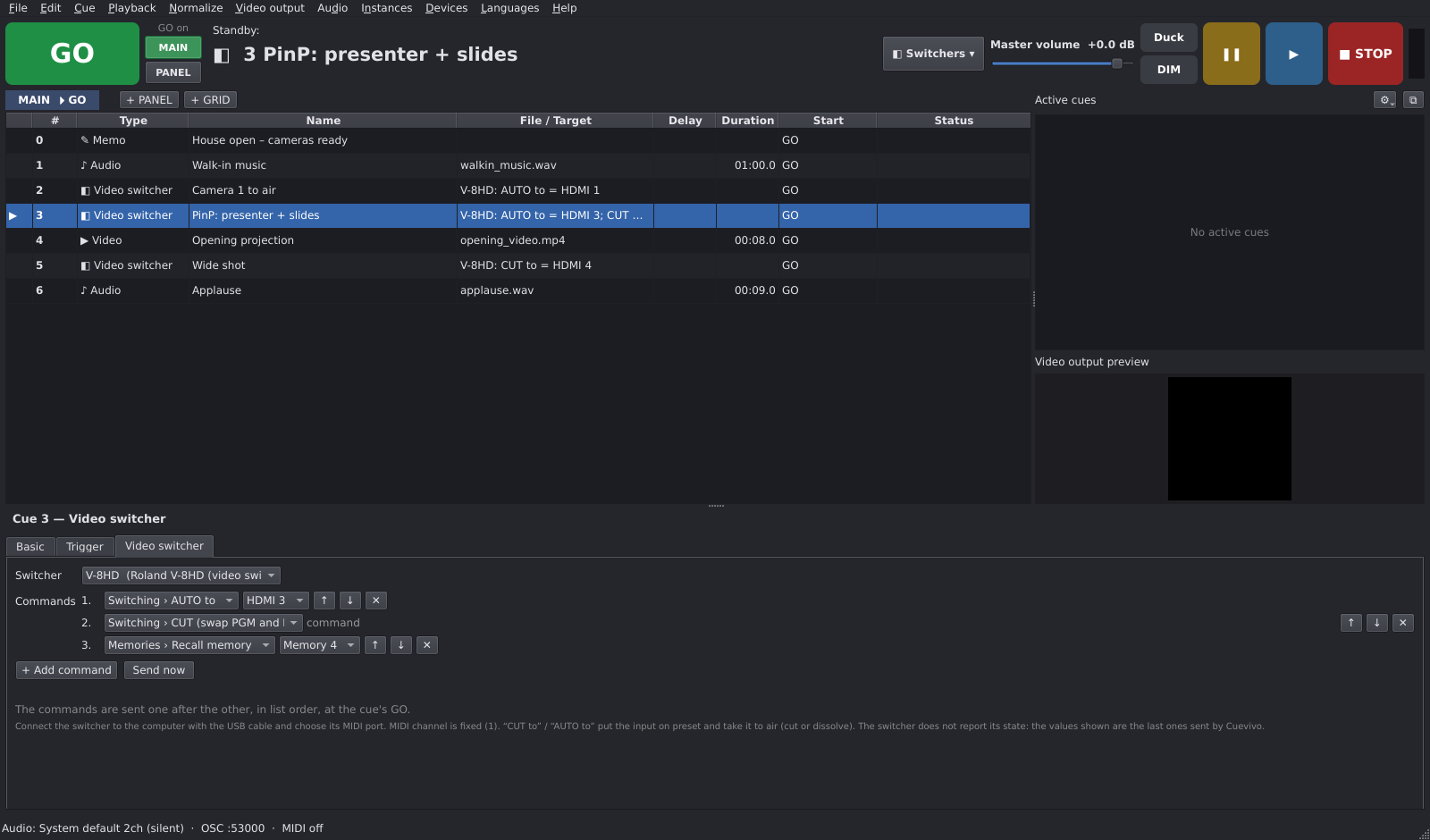
Video switchers panel for a Roland V-8HD

Video switchers: Roland and OBS

Control a Roland V-8HD or V-1HD over its USB cable, or OBS Studio over the network (OBS 27 and 28+, found automatically even on the same computer). A Video switcher cue runs a list of commands at GO — CUT or AUTO to an input, PinP, keyers, memories, transitions, audio levels; for OBS: scenes, Studio Mode, sources, recording, streaming and virtual camera. A live panel (F11) gives direct access to every function.

Roland switchers do not report their state: Cuevivo shows the last values it sent. OBS and ATEM report their real state.

Feedback to MIDI controllers

LED rings, motorised faders and button LEDs (e.g. Behringer BCR2000 / BCF2000) show the real state: cue volumes and opacity, the selected cue, the crossfader, running cues, DIM, Duck and Pause — even when values change from the mouse, a fade or another computer. Motorised faders never fight your hand.

Rock-solid redundancy

A backup computer mirrors the master exactly: same lists, same playheads, same pauses, and cues joined at the master’s position — drift above 0.3 s is corrected. External devices receive each command only once, from the master, until the master is lost. A flashing red alarm reports a lost master, the web remote moves on its own to the backup, and OSC programs follow the new master.

Slaves with limited access

Give each slave station the whole project or only some lists (MAIN, PANELs, GRIDs), as Control only or Edit — for example a sound-effects operator who only sees and runs their own PANEL. Settings changed on a secondary stay local, and updates from the master never disturb someone typing.

Messages between operators

A built-in chat between all the connected computers and the phones running the web remote: write to everyone or to a single station, with notifications in the status bar and vibration on phones.

Event triggers

Cues can start on their own when something happens: when the presenter’s microphone starts or stops being used (the ducking input), when the master is lost, or when a station is promoted to master.

Show bundles

File › Export bundle writes one ZIP with the show and every file it uses, from all lists and versions; Import bundle unpacks it and opens the show on any computer and operating system.

Everything a show needs

Written in Python with Qt 6, with its own audio mixer and FFmpeg-based video.

One big GO button

Build the show as a list of cues and run it with a single key. Pre-waits, “with previous” and “after previous” chains, standby label and a live list of active cues with remaining time.

Multi-channel audio engine

Its own mixer on PortAudio: several sound cards at once, a routing matrix per cue, fades and volume curves drawn on the waveform, built-in effects on every cue (gate, EQ, compressor) and effect buses with reverb and delay.

Video, images and surtitles

Video and image cues with layers, opacity, crop, position and size, preloaded for instant starts. Surtitles one line per GO, or timed SRT subtitles in several languages that follow the film.

PANELs and sampler GRIDs

Besides the MAIN list, extra PANELs for walk-in music, effects on call or emergency cues — each with its own playhead — and GRID pages of coloured tiles with keyboard shortcuts, Solo and Blind modes.

OSC, MIDI and MSC

Remote control over OSC and MIDI with Learn, MIDI faders and knobs, and feedback to LED rings and motorised faders. Cues that send OSC, MIDI, NRPN, SysEx and MIDI Show Control. Ready-made profiles for ChamSys MagicQ and QLC+, with an editor for your own.

Projectors and video switchers

Network projectors via PJLink and plugins: power, shutter, input, lens memory and real-time 4-corner correction. Roland V-8HD / V-1HD over USB, Blackmagic ATEM Mini and OBS Studio over the network, from cues or a live panel.

Digital mixers and sound cards

Finds Behringer X32 / WING / X Air, Midas M32 / MR18, Soundcraft Ui and Allen & Heath Qu / SQ on the network for mute, fader and scene cues. On Linux, a control panel for Focusrite Scarlett and other ALSA cards.

Automatic ducking

A microphone input automatically lowers the music while the presenter is speaking, with threshold, attack, hold and release — per cue or per group.

Master, slave and redundancy

A hot backup computer that plays exactly the same cues at the same point, or slave stations that control or edit only the lists you give them, or drive a surtitle projector in their own language — even across different operating systems.

Web remote

A built-in web server turns any phone or tablet into a remote: GO, STOP, pause, lists and cues. Just scan the QR code shown by Cuevivo, with an optional PIN.

Safe editing

Undo and redo with history, show versions, autosave and dated copies at every save. Find and edit many cues at once, print a cue sheet, and move the whole show with its media as one ZIP bundle.

Three languages

The interface is available in English, Italian and Slovenian, and new languages can be added with a simple JSON file.

Manual crossfade between consecutive cues

Mix from the cue that is playing into the next one with a real fader, like on a video mixer — at your own pace, in time with the action on stage.

  • Assign a MIDI fader to the Crossfader, or send OSC /xfader 0…1: moving it away from its resting end starts the cue in standby, and the fader position sets the balance between the two.
  • At the end of the travel the old cue stops and the resting end swaps sides, so the next crossfade is done by bringing the fader back — exactly like a video mixer’s T-bar.
  • Changed your mind? Bring the fader back before the end: the crossfade is cancelled and the next cue returns to standby.
  • Prefer it automatic? Crossfade to the next (F6, the web remote’s X-fade button, MIDI or OSC /xfade [seconds]) does the same over a set time.
  • Audio passes at constant power, with no dip half way; images and video dissolve without going through black. A video and its music started together cross over as one.

Cue types

AudioWAV, MP3, FLAC, OGG, AIFF, M4A… with in/out points, loops, fades, volume curves, effects rack and sends to buses
VideoMP4, MOV, MKV, WebM… with layer, opacity, crop, position and size
ImageStills with duration, fades, layers, crop and rotation
TextSurtitles and captions line by line with GO, or timed SRT subtitles in several languages
FadeBrings volume and/or opacity of another cue to a value
Change presetMoves a running cue — or an effect bus — to one of its presets over a transition time
Bus controlChanges an effect bus live: level, mute, live input, effect parameters, with a timed fade
GroupSequence, stinger, random, loop, playlist or all together, with tap tempo
CommandPlay, stop, pause, resume, exit loop, stop all, move playhead
OSCSends OSC messages to lighting desks and other devices
MIDI outNotes, CC, program change, NRPN, SysEx, MIDI Show Control, MMC and MIDI clock
ProjectorPower, shutter, input, freeze, lens and geometric correction
MixerMutes, faders and scenes on digital consoles
Video switcherA list of commands for a Roland V-8HD / V-1HD, Blackmagic ATEM Mini or OBS Studio, run in order at GO
Full screenOpens the video output full screen, or brings it back to a window
Stop panelStops the cues of chosen lists, with a fade
PDFPages of a PDF file on the video output, one per GO, with crossfade
LinkRepeats another cue elsewhere in the show; change the original and every link follows
Wait / MemoTimed pauses and notes for the operator

Cue groups: eight ways to play

Select some cues, press Ctrl+Shift+G and they become a group — in the MAIN list, in a PANEL or as a single tile in a GRID. The group's mode decides what happens when you press GO.

1

Sequence

step by step Tap Tempo

GO starts the first cue of the group, every following GO the next one, in order. “With previous” and “after previous” still apply inside the group. With “GO crossfades” each new cue fades out the previous one over its own fade-in time. After the last cue, the next GO leaves the group.

2

Stinger

with jingles around

Like Sequence, but every cue is wrapped by a PRE and a POST — say a jingle in and a jingle out kept in a PANEL. Cuevivo inserts them by itself around every cue, also those added later; you choose whether each starts together, at the end or with a GO, and can skip the first PRE and the last POST.

3

Random

one at random

GO plays a single cue picked at random, never the same one twice in a row. Ideal for alternative versions of the same effect — a different doorbell, laugh or footstep every night. The next GO leaves the group.

4

Loop

endless cycle Tap Tempo

The cues follow each other on their own, forever: each one is held for a set time (or for its own length) and then crossfades into the next — at constant power for audio, with a dissolve for images and video. Perfect for slideshows, ambiences and installations. The next GO leaves the loop.

5

Random loop

endless, shuffled Tap Tempo

Like Loop, but in random order. It can advance on time, or with GO: every GO crossfades to another random cue, and you leave with ESC or with an automatic “Exit group” cue that can also be fired from another PANEL, by MIDI or by OSC.

6

All

everything together

GO starts all the cues of the group at once, each respecting its own pre-wait. The simplest way to fire a sound, a projection and a lighting change as one action. The next GO leaves the group.

7

Playlist

one after another

GO starts the first cue; the others start by themselves as soon as the previous one ends, in list order, each played once, with an optional crossfade. Made for walk-in or interval music. With the group’s Loop option the playlist starts again from the top.

8

Random playlist

shuffled playlist

Like Playlist, but in a new random order every time it starts; every cue still plays exactly once per round. In loop it reshuffles each round without repeating the same cue twice in a row — and master and redundant computers play the same order.

Tap Tempo

for Sequence, Loop and Random loop

Instead of pressing GO, let the music set the pace: one cue every 1/16 to 16 beats at a tempo of 20–300 BPM. Tap it with a button, a key, a foot pedal, a MIDI note or an OSC message — even while the group is playing. The tempo follows the last 8 taps and each tap brings the beat back in phase.

Leaving a Loop or a Playlist either fades the current cue with the crossfade time or lets it finish. A running group appears among the Active cues, where it can be paused or stopped like any single cue.

Presets: snapshots of a cue

A preset is a named snapshot of how a cue sounds and looks. Every audio, video and image cue has its own presets, and you can switch between them — instantly or with a smooth transition — during the show.

What a preset stores

A preset saves all the audio and video settings of the cue together, so that a single change can transform it:

Audio

  • volume
  • fade in and fade out
  • routing matrix (which file channel goes to which output)
  • output volumes

Image & video

  • crop
  • position and size
  • distortion and perspective
  • opacity
  • fit

The preset bar sits in the inspector: pick a preset from the list, Apply it, Save as… a new one or Update it with the current settings. Presets travel with their cue: duplicate the cue and its presets are duplicated too; rename a preset and every reference to it is renamed as well.

Three ways to use them

1 · While programming

Keep alternatives side by side — “full screen” and “picture-in-picture”, “front speakers” and “surround” — and try them on the cue in rehearsal with one click, without losing the original settings.

2 · During the show, with a cue

A Change preset cue takes a cue that is already playing to one of its presets over a chosen transition time: the music moves from the stage speakers to the house, the video shrinks into a corner and fades to 40 %. It only affects that performance — the saved cue stays as it was.

3 · Automatically, on a timeline

Keyframes place presets along the cue's own time. Between two keyframes the values glide from one preset to the other, so a single cue can pan around the room or zoom slowly into an image with no extra cues at all.

Example: keyframes on a 60-second video cue
Image
full screen zoom on face (hold) corner
Audio
stage speakers surround
0 s15304560 s

Orange keyframes change the picture, blue ones the sound. Between two keyframes the values fade from one preset to the next; two keyframes with the same preset hold it. Matrix changes are at constant power, so a sound moving from one output to another never dips in volume. Loops are shown unrolled, so a keyframe can sit in the second or third repetition.

Screenshots

Click an image to enlarge it.

Download

Cuevivo is free software released under the GNU GPL v3. Packages are built automatically on GitHub.

Linux

A single AppImage with everything inside, nothing to install, for Ubuntu 22.04+, Linux Mint 21+, Debian 12+ and Fedora 35+ (64-bit).

Audio: PipeWire, ALSA, JACK

Windows

Installer or portable ZIP for Windows 10 and 11 (64-bit). The portable version even runs from a USB stick.

Audio: WASAPI, ASIO

macOS

Disk images for macOS Monterey or later: 12.3+ on Apple Silicon, 12.0+ on Intel. Not sure which Mac you have? Apple menu › About This Mac: “Chip Apple M…” = Apple Silicon.

Audio: Core Audio

System requirements

LinuxUbuntu 22.04+, Mint 21+, Debian 12+, Fedora 35+
WindowsWindows 10 and 11 (64-bit)
macOSMonterey 12.3+ (Apple Silicon), 12.0+ (Intel)
Memory16 GB of RAM
Disk2 GB of free space
GraphicsA GPU is required

Plus the space for your show's media files.

Version 1.0.36 · release notes ·
SHA-256 checksums a7fb97f45792b3e2ec3484b4c96ee9995f3adfa07a2bbdd6ee84d0dc2dfde1bf Cuevivo-1.0.36-x86_64.AppImage
e4d27ebbbac7d1ade2e4ff078f4de6775dd4f3c27ec799d3ae0090dd091b67fa Cuevivo-1.0.36-windows-setup.exe
3f1b04be3cea7771ffeae358f538d9eb7f059e4fac3832d1ccdafdc18043f763 Cuevivo-1.0.36-windows-portable.zip
70d39bd04b384ea11c02ed4e60f2d6cc2049ccd6a9fc62759fb2b4b54df728a3 Cuevivo-1.0.36-macos-arm64.dmg
b47a492e06c1412bf8416a80665d21bfb1bc976122d17aed79d90ab42f143ea2 Cuevivo-1.0.36-macos-x86_64.dmg
⚠ Experimental software. Cuevivo is still under active development and should not yet be used in production — live shows, events or permanent installations. It may contain bugs and behave unexpectedly; you use it at your own risk, without any warranty. Testing, bug reports and feedback are very welcome.